Bye Bye SQL Profiler – Welcome Extended Events

SQL Profiler for long has been THE go to tool for tracing the queries and if you are a SQL Developer it would be a miracle if you haven’t used it at all. In every facet of BI stack, this comes into play be it a SSIS package that is currently run, or in understanding a blank SSRS report or a Cube that is getting processed at the background one can hook up a trace as the first line of debugging.

The biggest problem with this though is that it ALWAYS had to be used within a limited time. You extend it longer than intended and all the activities on the SQL Server tend to slow down as it is a resource-intensive operation.

Sensing this I believe, Microsoft first came out with Extended Events with SQL Server 2008 version. It was horrendous to say the least. At that time this had to be entirely done through bunch of scripts, joining multiple tables with addition of XQuery to grab the actual data that we need. The learning curve to get this done was huge. I admit I had read various tutorials, did some practice but when I really wanted to use it I used to get cold feet. Without googling at least twice, this was a no-go and I used to fall back on SQL Profiler.

SQL Server 2012 onward, Microsoft has introduced GUI for Extended Events making it now a real easy breeze to work with. This has now been the de-facto tool that I use for tracing the queries now.

Here is how one can go about setting one up and using it to trace your SQL queries –

Log on to SQL Server and go to Management->Extended Events->Sessions. Right-Click on ‘New Session Wizard’ as shown below –

1_Opening_NewSessionWizard.png

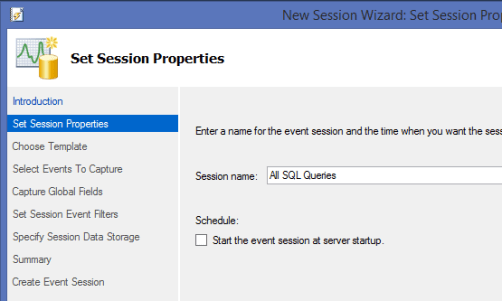
Click ‘Next>’ on the Introduction screen. In the ‘Set Session Properties’ tab give a name to the Session say – All SQL Queries as shown below and click on ‘Next>’

2_SetSessionProperties.png

In ‘Choose Templates’ tab click on ‘Use this event session template:’ and in the drop down select ‘Query Batch Tracking’ as shown below and then click on ‘Next >’ –

3_ChooseTemplate.png

In the ‘Select Events to Capture’ tab across the ‘Selected events’: you can remove error_reported, rpc_completed and only have sql_batch_completed in it as shown below and click on ‘Next >’. You can remove the other two that come by default by just clicking on them and using the ‘<‘ arrow button –

4_SelectEventsToCapture

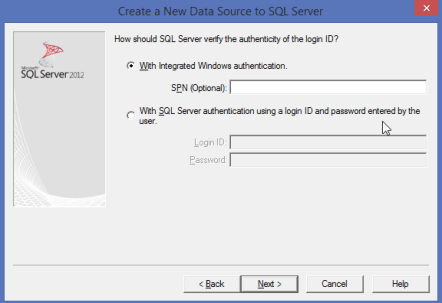
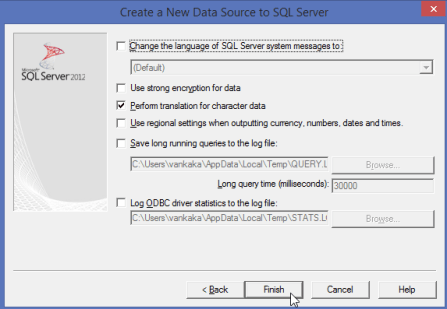
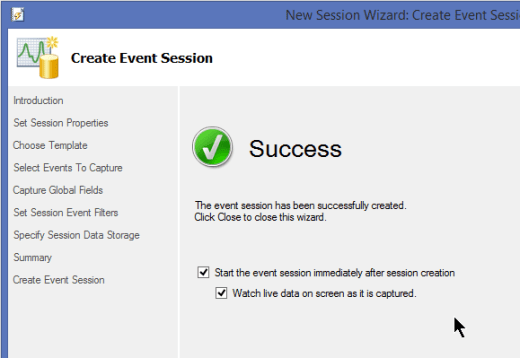
Keep the defaults as they are for the subsequent screens and click on ‘Finish’ in the ‘Summary’ page. In the ‘Create Event Session’ page that pops-up, to start seeing your results immediately, you are provided with two options. Enable them and click on ‘Close’ as shown below –

5_CreateEventSession.png

Upon doing that the trace is now up and running waiting for the queries to start. Here is the output of showing one query that was run against one database in the server –

6_QueryResult

As can be seen this one is more cleaner and more easier to read without the unnecessary redundant information that used to come along from SQL profiler.

This is just a tip of the iceberg from what we can achieve using Extended Events. There is an ocean out there to explore but for those who are seeking to trace out a query this should be a good start.


SSIS Lookup Gotcha – Test Fully

The task I had on my hands was simple. I had to perform lookup on a target table with my source data and get all non matched data. The data that I was fetching for the lookup from target had additional string manipulation done to obtain the required lookup data. I then went on to write a query to fetch that data and testing on a sample subset (using TOP 10) to check for it’s correctness and went on to implement.

I set everything up and when I ran the package the lookup was just now working. The rows that I expected to have a match were simply getting redirected to no-match. When I started debugging, it then became apparent that the query that I had used to retrieve the dataset in the lookup was an incorrect one. This time around I ran the query without the subset and the query failed to get executed showing me the actual error.

Moral of the story is one should not rely on ‘Preview’ results offered from the ‘Lookup’ transform or use a subset when sampling the data. It should be checked to see if the query works for the entire set.

Let me illustrate this with an example.

Below is a sample of Source Data –


FileName
Test1.txt
Test3.txt

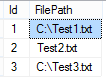
Here is the data that I am doing a lookup on from a table say dbo.LookupTable (a simple Id and FilePath column) –

1_TargetDataSample
The string manipulation query for this is as you might have already guessed, to get FileName from the ‘FilePath’.

select Id,RIGHT(FilePath, CHARINDEX('\', REVERSE(FilePath)) -1) as 'FileName'
from dbo.LookupTable;<strong>
</strong>

I have a simple Data Flow Task which does the following –

  1. OLE_SRC – Get Source Data – Gets the source data as shown above.
  2. LKP – Get Id – Using the query above, it fetches the Id and FileName. Note that the moment you put that query and go to ‘Columns’, it will throw up an error. For the purpose of this illustration just ignore it and do the mapping.
  3. Trash Destination – A priceless open-sourced transformation from Konesans and a must  have development aid.

Here is how the package looks like after running it-

2_DataFlowTaskContents

As can be seen only 1 row gets shown as matched even though there are 2 matching rows.

The data in this sample illustration is very small but the original data that I had about 100k records and it was difficult to debug on why this error occurred.


Informatica 101 – Where are my Foreach loops? – 1

One of the most used transformation that I use as part of SSIS is the Foreach loop which *gasp* just isn’t there in Informatica out-of-the-box. In this post, let’s look at how it’s done.

Test Data


I have three files named StudentsData001.txt, StudentsData002.txt, StudentsData003.txt. In each of the file, there are two columns – Id, Name such as

Id,Name
1,Karthik
2,Pratap

Our goal is to integrate all the data from all the three files into a table Students which has two columns Id and Name.

Steps to be done


Open the PowerCentre Designer. Go to Source and click on Import from file as shown below –

1_SourceImportFlatFile

Chose one of file from the source folder and in the next window, ensure to check on ‘Import field names from first line’. –

2_FlatFileImportWizard

Accept the defaults and complete the wizard by setting the appropriate size for the ‘Name’ column. Once the source is set-up, we would need to set-up the destination. Go to ‘Tools’->’Target Designer’ and then go to – ‘Targets’ -> ‘Import from Database’ as shown below and connect to the ‘Students’ table where you want all the data to be imported-
3_CreateDestination

Go to ‘Tools’ -> ‘Mapping Designer’ and then go to – ‘Mappings’->’Create’. Drag and drop both the source and destination on to the mapping designer and then connect the source data on to the destination as shown below for ‘Source’ –
5_Mapping_DragAndDrop

Connect both the columns from ‘Source Qualifier’ and connect to ‘Destination’ by dragging and the dropping the columns.

6_Mapping_JoiningDestination.png

Once it is set, generate the workflow by going to ‘Mappings’ -> ‘Generate Workflow’. Just follow the wizard and click on ‘Next’ till it finishes.

7_WorkflowGeneration.png

What we have done so far is a basic set-up just like in SSIS when we do the DFT containing the Flat File Source to the OLE-DB Destination (or whichever destination). The actual work of looping is now to be done at the session level. Even before we get to that, what we need to remember is – Informatica has two modes of handling Flat Files – Direct and Indirect Mode. We need to use Indirect Mode to handle the multiple files list.

First thing is we need to create a file containing the list of all the file names in it. I created a file called ImportFileList.txt as shown below –

10_IndirectFileList.png

Open the PowerCentre Workflow. Open the worfklow wf_m_FF_To_Database and then double-click on the session – s_m_FF_To_Database. ‘Edit Tasks’ window would open up as shown below –

11_SessionSQAttributeSetting_0.png

Go to Mappings tab and under ‘Sources’ click on the ‘SQ_StudentsData001’. In the bottom most window set the following properties –

  • Source filetype – Indirect
  • Source file directory – Path of the directory where the InputFileList.txt is present.
  • Source filename – ImportFileList.txt

11_SessionSQAttributeSetting.png

That’s about it. Those are the basic changes that are to be done. Save the workflow after performing the above changes. Also ensure, under Connections tab the , Students – DB Connection connection name is valid.

The next step is to start the workflow by going to – Workflows -> Start Workflow. Once it is successful you would see that all files are processed and the ImportFileLIst.txt is no longer existing, The results post-processing are shown below –

12_PostWorkflowResults.png

Next Steps –

  • How do go about automating this file generation file? Am guessing we would need to have a command task in workflow reading the files and generating the file.
  • How does it change from DEV to say UAT i.e. basically how do we localize it?


Import and Export Wizard – Handling Dates in Flat Files

As they say there is first time for everything. Having worked on so many packages all through my career never once I had a need to import a flat file containing dates directly from SQL Server Import and Export Wizard. It also may be a case of not having the data type set as ‘Date’ in the column and rather take it as a varchar value when doing imports.

So today as part of some task I had a requirement to import data with some date columns in it. Let’s say data for my column data looks like this in a file called DateTest.txt. Note that there is a row with blank data –


StartDate,EndDate
2017-01-01,2017-01-01

2017-05-01,2017-05-01

So I opened up the SQL Server Import Wizard, set the Data Source as – Flat File Source and browsed and obtained the File as shown below –1_SQLServerImport_General.png

Now go to Advanced and set the properties for both the columns StartDate and EndDate as ‘DT_DBDATE’ which translates to date datatype of SQL Server. For more info refer to – link. The screenshot below is for ‘EndDate’. Do the same for StartDate column as well. 2_SQLServerImport_Advanced_SetDataType.png

Set the Destination to your local Database say RnD as in my case as shown below –3_SQLServerImport_Advanced_SetDestination.png

In the ‘Select Source Tables and Views’, leave it as is and click on ‘Next>’ (This will create the table by default). Leave the defaults as is in the ‘Save and Run Package’ screen, leave the defaults and click on ‘Next>’. Click on Finish in the last page of the wizard. You will see the ‘Operation Stopped’ with ‘Copying to [dbo].[DateTest]’ set to error as shown below.

4_SQLServerImport_EndOfWizard_OperationStopped.png

If you dig further in the Messages, here is what it throws up the following error-

5_SQLServerImport_EndOfWizard_OperationStopped_ErrorMessage.png

The error states –

An OLE DB record is available.  Source: “Microsoft OLE DB Provider for SQL Server”  Hresult: 0x80004005  Description: “Conversion failed when converting date and/or time from character string.”.
 (SQL Server Import and Export Wizard)

The blank values are treated as strings and that is what the error states.

Solution 1 –

Instead of setting the data type as ‘DT_DBDATE’ set is as ‘DT_DATE’ then it will pass. There are two side-effects to this –

  • The destination column would be of type datetime instead of date.
  • All the blank values will be set as ‘1899-12-30 00:00:00.000’ as can be seen below6_SQLServerImport_Solution1_Result.png

It’s not a optimal solution. If you are just importing one file with limited columns of such type and if the destination  table on which are you are importing isn’t a large table then we can go with this approach. Depending on the use case, one can then proceed to either update the values as NULL or leave it as is.

Solution 2 –

This involves creating a package out of the same operations. Now one can go about it in the traditional way i.e. open SQL Server Data Tools (Visual Studio), add new package, drag and drop a DFT, yada yada.

Instead let’s replicate the same behavior as before. How you may say. Did you know that one can fire up a ‘SQL Server Import Wizard’ from SQL Server Data Tools itself? Now before we go further, if you have been following along, the table ‘dbo.DateTest’ in your destination should be existing.

Open a SSIS Project and go to ‘PROJECT’->’SSIS Import and Export Wizard…’ as shown below –

7_SQLServerImport_Solution2_VisualStudioProject.png

The wizard looks exactly the same as fired from SQL Server. At the end you will notice the difference. Follow the same steps that you have done earlier i.e. by setting the data as ‘DT_DBDATE’. Instead of executing, it creates a package and the final window would look like this. It will create a new package called Package1.dtsx if there isn’t one already. If there is one it would create Package2.dtsx. –

8_SQLServerImport_Solution2_VisualStudioProject_EndResult.png

At this point if you run the package that gets generated automatically as is you will get the same error. Here are the changes that are to be done.

Open the Control Flow Task – ‘Data Flow Task 1’. In the Data Flow task, open the task ‘ Source – DataTest_txt’. Ensure that ‘Retain null values from the sources as null values in the data flow’ as shown below –

8_SQLServerImport_Solution2_VisualStudioProject_RetainNull.png

Secondly double-click on the ‘SourceConnectionFlatFile’ connection manager, go to Advanced and modify the data types of StartDate and EndDate to DT_STR and length 10. Below image is shown for EndDate. Do it for StartDate as well.

20_ImportExport_AdvancedConnectionManager

Since the source connection manager is changed, the DFT – ‘Source-DataText_txt’ needs a change. Double-click on the DFT and you will be presented with the changes as shown below. Accept them.21_ImportExport_RefreshFlatFileConnectionManager

Delete the connector between Flat File and the OLE DB Destination and drag in a Derived Transform in between them. Add the following two expressions as shown below –

  • Derived Column Name  – DC_StartDate ; Expression – StartDate == “” ? NULL(DT_DBDATE) : (DT_DBDATE)StartDate
  • Derived Column Name  – DC_EndDate ; Expression – EndDate == “” ? NULL(DT_DBDATE) : (DT_DBDATE)EndDate


17_SQLServerImport_Solution2_DerivedColumnTransform.png

Connect the Derived Transform output to the OLE DB Destination and set the mappings with the newly transformed columns. 24_ImportExport_OLEDBDestinationMapping

In addition to that set the ‘Keep Nulls’ property to yes.

23_ImportExport_OLEDBDestination

That’s it. Now execute the package. All the three records would now get successfully

25_ImportExport_ExecutionResult

Data gets transferred with the blank values retained as NULL values as shown below –26_ImportExport_ExecutionResultTable

To summarize the solution, basically out-of-the box Import/Export wizard will not work with getting NULL values to date columns. Here are the changes to be done –

  • Set all the date columns for which you would want to retain NULL for blanks as String values
  • Add a Derived Transformation to change the data type of the data to DT_DBDATE.
  • Set the retain null property at both source and destination to yes.

Solution 3 –

The ideal solution should be the one wherein one can use DT_DBDATE at the source itself and it should go through to destination. For some reason I have been getting strange errors while doing it as shown below –

Error:Year, Month, and Day parameters describe an un-representable DateTime.

. I am still working on it. Once I get a better solution, will post it here.


Informatica 101 – Staring the first mapping

At this point I am assuming you have been able to successfully install the Informatica 9.6.1 legally by following the steps listed out in this article – link. 

First let’s define the problem statement.

Task –

Load data from a table into a flat file. The table data that I am loading is from the good old AdventureWorks . Here is the query which I have stored in a view – Person.vw_GetTop10Persons –

select top 10 BusinessEntityID
,FirstName
,LastName
from Person.Person
order by BusinessEntityID;

Steps –

Open the PowerCenter Repository and connect to the the Repository that you have created. Go to ‘Folder’->’Create’ and give it a name say ‘InformaticaLearning’ and click on ‘OK’ as shown below

.CreateRepositoryFolder.png

Click on Start and open up the PowerCenter Designer and connect to the ‘Repository’. The ‘InformaticaLearning’ project that we created in the previous step would now appear. Right-Click on the folder and click ‘Open’ as shown below. This is how a project is opened                                 Opening project from Repository

Unlike SSIS wherein you drag a Data Flow Task and within which you start creating source and destination, the process here is to create sources and destinations as separate entities. First step is to create a Source. Go to Sources->Import from Database as shown below –

SourceImportDatabase

In the ‘Import Tables’ window, click on the ellipsis button. The ODBC Source Administrator(32-bit) window pops up. Click ‘Add’ and in the ‘Create New Data Source’ Window scroll down to the appropriate SQL Server client and click on ‘Finish’. I have SQL Server 2014 as well as SQL Server 2008R2 and the driver that I am choosing is SQL Server Native Client 11.0. as seen belowCreatingSourceFromImportTables.png
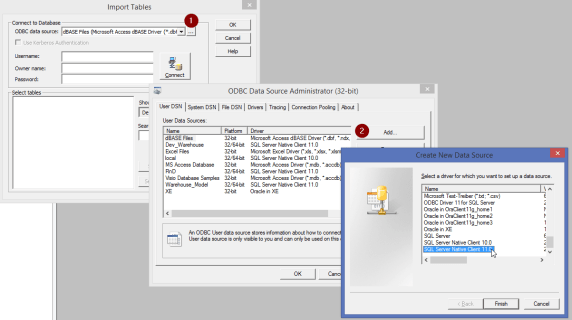
The following screens give an indication of the next steps in creating the data source.
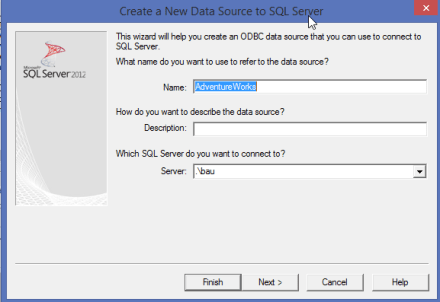
NewDataSource_1NewDataSource_2                                     Ensure to change the default database to the actual  Database from which you are sourcing the data which in this case is – AdventureWorks2014NewDataSource_3.png
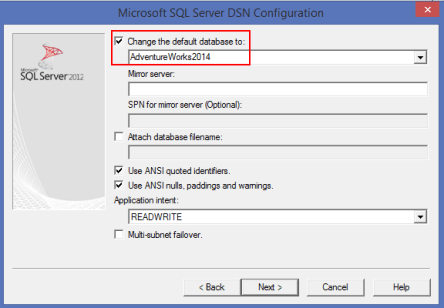
NewDataSource_4

NewDataSource_Finish

The ‘User Data Sources’ should now contain ‘AdventureWorks’. Click on ‘OK’. You will again get back to the original ‘Import Tables’ window. Here you would need to select the source again from the drop-down and click on ‘Connect’. All the tables would appear in the ‘Select tables’ window.ImportTables_Tables.png

In the ‘Search for tables named:’ section type the name of the view – vw_GetTop10Persons and click on ‘Search’. The narrowed result will now appear. Now click on ‘OK’ as shown below – ImportTables_Tables_2

The ‘Source’ is set. Now let’s create the destination. Go to Tools->Target Designer. Now go to ‘Targets’->’Create’ as shown below. – Targets_Create_NewTarget.png

In the ‘Create Target Table’ window, enter the name for the target say ‘Top10Persons’ and for ‘Select a database type:’ select it as ‘Flat File’ and click on ‘Create’ and then press ‘Done’ once done.
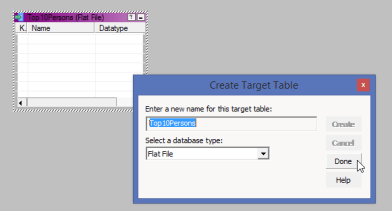
Targets_Create_NewTarget_2.png

You now need to define the column details. Double-Click on the newly created table and define the column details. You may be wondering where to put the file path right? It’s not done here. It is done at the ‘Workflow’ level – Targets_Create_NewTarget_3.png

Now go to ‘Tools’ -> ‘Mapping Designer’. Click on ‘Mappings’->’Create’ as shown below and give it a name m_SQL_Persons_To_FF and click on ‘OK’

Mappings_Create

In the ‘Mapping Designer’ pane, drag and drop the source – vw_GetTop10Persons on to the ‘Designer’ as shown below just same as how we drag and drop Data Flow Components. You would see that the source would appear along with additional ‘SQ’ block. This is called ‘Source Qualifier’. This is basically used as a stop for homogenizing all the source data. Every source when dragged gets a source qualifier associated. We will see more on that later on.  Here is the window of the Source along with the Source Qualifier – Mappings_Create_2Mappings_Create_3

Right-Click on any column in the Source Qualifier and click on ‘Select All’  Mappings_Create_4

Click on the Square box beside the column ‘BusinessEntityID’ in the selected list and drag it to the exact column ‘BusinessEntityId’ at the destination as shown below.Mappings_Create_5

Once done, the mappings between both the items will be seen.Mappings_Create_6

Click on ‘Mappings’->Validate and the following information would appear giving the results of the validation.Mappings_Create_SaveResults

Next step is creating a ‘Workflow’ for this as this can’t run independently. Go to Mappings->Generate Workflow as shown below -.                                                           Workflow_Generate
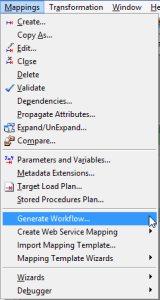
In the ‘Workflow Generation’ window, accept the default and click on ‘Next>’ until the 4th step and then click on ‘Finish’.

Go to Tools->Workflow Manager. Expand the ‘Workflows’ and one can find the newly created ‘wf_m_SQL_Persons_To_FF’. Right-click and click on ‘Open’ as shown below –

Workflow_Start.png

We first need to create the ‘Data Sources’ again this time for ‘AdventureWorks’. Go to ‘Connections’->’Relational’. Click on ‘New’ –

1_RelationalConnection.png

In the ‘Select Subtype’ window, click on ‘Microsoft SQL Server’ and click on ‘OK. New Connection Object Definition opens. Note that this is entirely different from the ODBC source that you had configured while creating it in the Designer. For attributes the following details have to be supplied as highlighted.
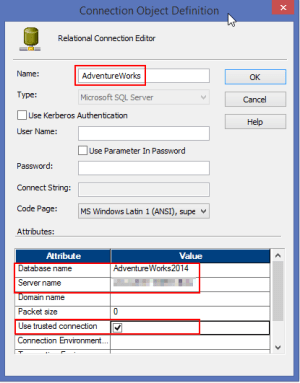
2_RelationalConnection.png

Click on ‘OK’ and then with the newly created object ‘AdventureWorks’ selected click on ‘Close’.

Double-click on the session object ‘s_m_SQL_Persons_To_FF’. The ‘Edit Tasks’ window will now appear. Go to ‘Mapping’ tab and click on ‘Connections’. For the SQ type, we need to change the value to the one we just created. So click on the down arrow button as shown below and select on ‘AdventureWorks’ in the ‘Relational Connections Browser’ pop-up.
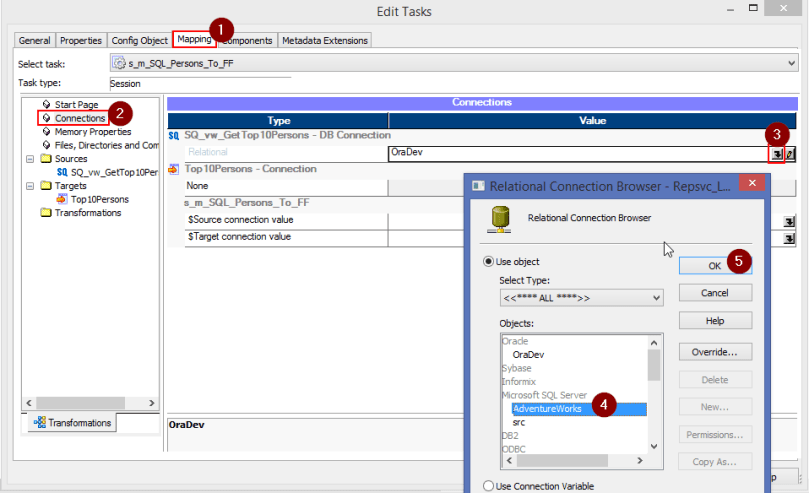
3_RelationalConnection.png

We now need to configure the Flat File Connection details. For this click on ‘Files, Directories and Commands’.Give the values for ‘Output file directory’ and ‘Output filename’ as shown below
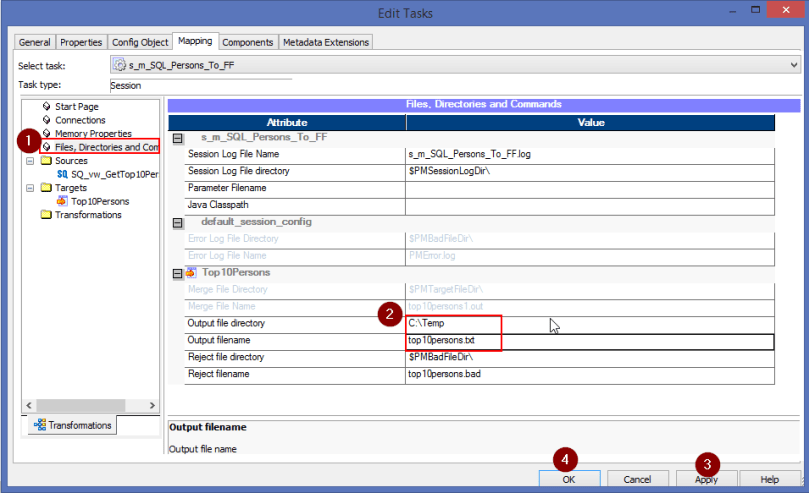
4_RelationalConnection.png

Go to ‘Workflows’->Validate and ensure there are no errors. Click on ‘Ctrl-S’ to save. Again go to ‘Workflows’->Start Workflow. To understand the progress of the Workflow, we need to check in the PowerCenter Monitor. Click on Tools->Workflow Monitor and navigate to the project and the workflow.

You will get a Gantt Chart view of the run indicating the success as seen below –
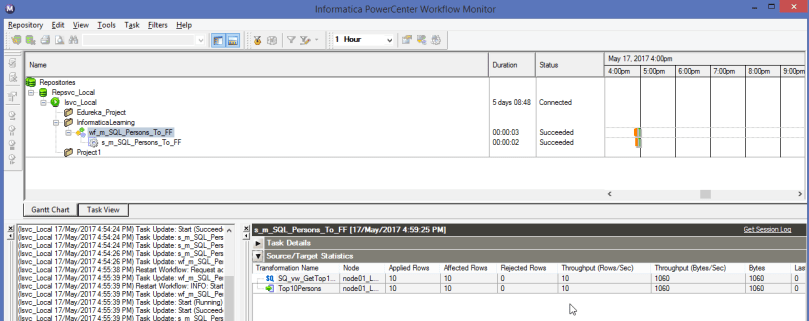
5_RelationalConnection.png

And that my friends is how we create a ‘Hello World’ equivalent of package in Informatica. Looks complicated isn’t it? Slowly, you will get used to it.

Next post is all about how to generate a dynamic file naming.

Informatica 101 – How it compares to SSIS

Recently as part of my project I had a chance to finally get a hands on Informatica and how it does the standard ETL. The work that I was given was mostly to validate the counts by opening up the transformations and the actual counts that were obtained after the workflows were run. It really piqued my interest and I wanted to get a real hang of it.

So I took up the course ‘Informatica PowerCenter 9.X Developer & Admin’ in Edureka thanks to sponsorship by my current company. Over 2 weeks and with 3 hrs per week I felt I have grasped sufficient information. We had a good trainer that talked us through various aspects of the tool. He kept a use case, explained us what is it we are trying to achieve and then give a walk-through of the whole process which I could then replicate on my own.

At the end of the course we were given a small project to load a data warehouse with some dimensions of type 1 and some of type 2 into a single fact table which I completed comfortably.

Having over a decade of experience in SSIS, my mind was constantly comparing both and at the moment I feel performing certain simple tasks in Informatica are very hard compared to SSIS. So here goes some of the mental notes –

Tool Overview –

  • You need, brace for it, 4 separate tools to develop, deploy and monitor the ‘workflows’ a.k.a packages in SSIS.
    • Informatica PowerCentre Repository Manager- The place where you need to create the project similar to how one creates project in SSIS. That’s where it ends though. One cannot do any development here. This is the tool that one mainly uses to either import/export objects. Additionally I can see that it also gives a detailed info on various objects (will talk about it in future posts) such as Data Type, Precision, Key Type etc.
    • Informatica PowerCentre Designer – This is the tool where the actual development happens. Here is where you create your sources, destination, transformations/mappings. The end product out of designer is a mapplet which is a culmination of Source, Transformation and Destination. In SSIS parlance, developing a package with only Data Flow tab available.
    • Informatica PowerCentre Workflow Manager – All the mappings that were created in the designer need to be brought into the workflow. Prior to that we would first create a session, select the appropriate mapping. In SSIS parlance, one can say having just the Control Flow tab available.
    • Informatica PowerCentre Monitor – Once you create the workflow, here is where you need to connect and run the workflows, monitor the output, restart if needed. This plays the role of SQL Server Agent.
  • It is a metadata driven tool i.e. when the tool is installed you would need to specify the database on which it needs to be hosted where it creates all the tables, stored procedures, views etc. This is called Informatica PowerCenter Administrator console.

Dislikes –

  • No ‘Test Connection’ – Unlike in SSIS where sources and destinations are intrinsic to the package, here they are separate components of the project. Starting from SSIS 2012 with the advent of Project Parameters, this feature should sound familiar. The pain point though is that when you create OLE DB Sources/ Destinations there is no ‘Test Connection’ button to validate.
  • Re-creation of Source/Destination – As I was detailing earlier, your core development happens in PowerCenter Designer where. Once you are done you need to open the PowerCenter Workflow, create a session for the mapplet from Designer. Here again when it comes to OLE DB Sources/ Destination you would need to create again! It doesn’t come right away.
  • Disconnect-Reconnect – Let’s say you start with a mapplet. You create a workflow for it. So you will have two tools open – Designer as well as a Workflow. From the Workflow Manager you execute it and that’s about it. Let’s say you start to work on new mapplet. From the Workflow Manager you would need to disconnect and then reconnect to see the newly created workflow.
  • Dynamic File Naming – It’s just so hard. In SSIS, it’s all about getting the ConnectionString attached to a variable and that’s about. Here you would need at least 4 variables to do that.
  • No Loop Containers – There is absolutely no looping containers such as For Loop, Foreach Loop containers available. At this moment I don’t even know what the replacements are.
  • No Stored Procedure data as a source – Out of the box this just can’t be done. Again like above it doesn’t have a straightforward way.
  • No Data Viewers


Likes –

  • Component Re-usability – One can create a component and have it re-used across various mapping. This is what they call Transformations.
  • Ability to connect to any data source – Unlike SSIS, which is a beauty when it comes to SQL Server Destination and a beast when dealing with others, Informatica makes it a breeze no matter what source and destinations there are

The journey has just begun. In my next post I will give a detail on how to start one simple package and get it executed in Informatica in comparison with SSIS. Meanwhile I am also looking to see who I can get to work on Looping / Stored Procedure.

Strange BCP error in SSMS

Quite recently, as part of some project activity I had to export some data to a flat file using the good old bcp command using the xp_cmdshell. I had put all the right arguments but still I was getting an error. It was only then I discovered this strangeness of the error.

Let me explain with the example. Let’s take this simple query from the good old AdventureWorks, output as the set that we would like to export as shown below –


select top 3
FirstName
,LastName
,MaritalStatus
from AdventureWorksDW2008R2.dbo.DimCustomer

Below is the full query that would be used to get the file output via the bcp.


declare @sql varchar(200)
,@bcpCommand varchar(4000)
,@outputFilePath varchar(200)
--set the sql query
set @sql = 'select top 3
FirstName
,LastName
,MaritalStatus
from AdventureWorksDW2012.dbo.DimCustomer'
--set the output file path
set @outputFilePath = 'C:\Users\vkarthik\Documents\Learning\PractiseData\Output.txt'

--set the bcp command
set @bcpCommand = 'bcp "'+ @sql + '" queryout "'+@outputFilePath+'" -S"." -T -t","'

--execute the bcp command
exec master..xp_cmdshell @bcpCommand

Before running the command ensure that xp_cmdshell configuration is enabled. Just follow this link

Here is the output you would get.

bcpoutput-null-error

Just ‘NULL’. It just doesn’t make any sense right? It is only after series of searches I have found out. The query that we use should not contain any carriage returns. So here is what I did. I added a replace command to strip out the carriage returns as shown below right after setting the query-


--set the sql query
set @sql = 'select top 3
FirstName
,LastName
,MaritalStatus
from AdventureWorksDW2012.dbo.DimCustomer'
--replacing the carriage returns
set @sql = REPLACE(REPLACE(@sql,CHAR(13),''),CHAR(10),'')

Now that you are set, on re-run the command should work.

Here is the result below –

bcp-output-post-fixing-the-carriage-return


Indespensible Dev Tools

This is a post about some of the tools that I make sure are available on my system and which I have found to be highly indespnsible to my work

Greenshot –

It’s been almost 6 years now since I have been first introduced to Greenshot by our onsite manager who adviced on this fantastic piece of software for capturing screenshots. It’s absolute light-weight open source software. It takes over the Print+Screen functionality and can capture, some or whole page, adding annotations. Here are the main highlights which I feel are the best use of this software and that I routinely use besides the obvious annotations are  –

  • Capturing only certain region and ability to mail right away
  • Easy annotations
  • annotation-example
  • Obfuscation of selected area

obfuscation-example

  • Copy to Clipboard (THE most important one)
  • Add Counters – the best feature as shown below. It comes so very handy when doing documentations and detailing deployment steps. I just can’t thank them enough for incorporating this.The bonus is using these counters along with annotations, you just don’t need to write anything at all in the steps.add-counters-example
  • Ability to just delete the parts you don’t need and move around the objects. What I mean by that is in the above example, you can just remove the obfuscation or remove the number 3, or move that around to a different place. It’s just like multiple objects on your image but you have the freedome to chose and pick what you want.

No other alternative that I have used so far has even come close to this tool’s super lightness (occupies only 20 MB when not in use) and ease of use with some unbelievable features. One of the worst offending ones is the behemoth Snag It that just not only eats up your RAM but has tons of bloated features that feels over done and also the most obvious problem of not having a clean uninstall.

Download it from – Greenshot

Stickies

Stickies from Zhorn Software is again one such tool which, once you start using it, you would wonder how did you manage yourself without it. Again it’s absolutely free. They are the virtual version of real life stickies and once you install you will be presented with the ever so familiar stock stickie on screen. Some of the features that I most often use and the reason why it stands out from the plethora of wanna-be’s are  –

  • Ability to pin one up so that they are always even if there are multiple applicaitons running
  • Ability to copy and paste images, text
  • Setting alarms
  • Ability to hide them for certain period

Apart from these there are other plethora of features that I haven’t used yet. I mainly use them to categorize and store frequently used information such as server names pertaining to environment, file locations, making a to-do tasks, adding reminders etc.

You can get it from – Stickies

Note: Just the mere search of Stickies would throw up this as the first result should be a reason enough to know how fantastically popular this is.

SSMS Tools Pack

As the name suggests it’s a tool pack that packs power to the punch. It’s an add-in to SSMS and has variety of features and some of the ones that I use the most are –

  • SQL History – all the queries executed in a given script and session are stored in a dockable format in the SSMS using which it is very easy to scroll through the history
  • Insert Statement Generator – You can generate insert statements right from a specific table or all tables or even through your query results.
  • Search Database,Tables, View Data – Search through the whole database for a specific value.

Of course there are many more than the ones above. In the SQL Server world and especially talking about SSMS there are SO many out there and the one that immediately comes to everyone’s mind is the Red Gate stable. They are just different league altogether and servers seperate use case. The advantage of SSMS is it’s cheap and for SQL Server 2008 R2 and before it’s absolutely free and it’s best bang for a buck.

You can download it from – SSMS Tools Pack


Power BI and Machine Learning Meetup

For long I always wanted to be involved in Meetups or User Groups to meet like minded people, hear great lectures and gain knowledge. So on searching around I found the group ‘Sydney Microsoft Analytics and Data Science’ and immediately joined it whose next meetup was on a topic that had a bit of mystique around it –  Power BI and Machine Learning.

The mere mention of the word Machine Learning conjures up images of unending machines in a warehouse in an underground bunker manned by security guards and a team of rag-tag scientists mulling around outside watching giant screen and monitoring people. Something similar to the way Mr.Robot sends some code and kaboom a company goes down or the way the ‘Machine’ of Person of Interest is programmed by Mr.Finch. Anyway I am drifting myself. Point I am getting at is Machine Learning seems to be a very abstract topic that I still need to get my head around it.

So having Power BI and Machine Learning at one place intrigued me. The session was organized by Grant Paisley who somehow reminded me of one of the important character from Outlander. I reached the place 10 minutes to the scheduled time and could see lot of people already there.

Grant started off with a bit of apology owing to the fact that his laptop on which he had his presentation had some problem and now he is going to make use of one of his friends and an attendee. So he started off explaining the general outline of what the talk is going to be, the end result that we are to expect and the way to go about getting it.

The PowerBI application showed the variance of house real estate prices containing about 20 different parameters on which a user can analyze, the chief filter being the Location hierarchy. It was a very impressive dashboard having lot of detailed analysis and multiple pages. It looked pretty complex. Grant told us this was a project he had done for a banking client to give them an understanding of their customer’s expectations.

The next steps went as follows –

  • Overview of the raw data was given. The raw data that was shown had about at least 600 columns with more than 1000 rows per column. 3 to 4 columns formed a group and so there were say 200 groups.
  • Setup excel sheet was demoed which contained the various parameters that Power BI would be utilizing as an input to dice the data. An excellent idea which hitherto I didn’t think was possible. I mean I always thought the filters on Power BI are the only ones available to play the data with. It was bit of news to me that the Power BI dashboard can be passed parameters.
  • Raw data was first loaded into Power BI desktop.
  • A copy of Raw data was dumped as a new dataset. Excepting the headers all the detail row data was deleted.A new column was added as header and so for all the 600 odd header columns that were there, each had a column name starting with Column1 to Column600. Data was then transposed i.e. unpivoted. So we had Column1, Header1,Attribute1
  • Similar approach was followed next but this time all the details data was retained and headers deleted. A link was then established between Header data and Detail data along with a Date Dimension.
  • A flat file was then generated as an output from Power BI which was then fed into Azure Machine Learning on the cloud. This was the part where it got over my head. They used some data mining algorithms to dissect the data further with an explanation of each step.

Grant then gave us an explanation on white board of how the whole process involved. By that time the clock had ticked an hour.

The session was very engaging and the unpivoting the data and the ability to dissect a non-tabular raw data gave me a very good insight into the whole range of possibilities that are possible with Power BI using which I intend to do my first foray into strengthening my knowledge on it.

It was an engaging session, very captive audience. I had a very good time.

SSIS-Reading datetime stamped flat files

One of the most often asked interview question that I have encountered goes like this –

I have list of flat files in a folder with datetime stamp in it and  I would like to read only current month’s file. How would you do it? A similar variation of the question was posed in StackOverFlow and I thought why not just write a post on it. Though this particular question slightly differs from the problem statement i.e. in this instance the ask is to iterate through all the files from oldest time stamped file to the newest time-stamped file which is the logic I have written for.

At the high level, idea is to –

  1. Get all the files present in the directory.
  2. Loop through each file and store it’s metadata in a dictionary. Basically dictionary is a collections object that stores values as a Key/Value pair. In our case the Key would be ‘Date Time’ part of the file name and the Value would be full file path of the file name.
  3. Load all the Keys from the dictionary to a List.
  4. Order the List values.
  5. Loop through each value in the List and get the corresponding Value of that Key from Dictionary and store them in another List say orderedFiles.
  6. Assign the orderedFiles value to a SSIS object.
  7. Use this SSIS object as the new reference to loop in the For Each Loop container by using the Enumerator ‘Foreach From Variable Enumerator’

The Steps(1) – (6) are achieved via Script Task transformation. Let’s see how this works.

Firstly I created bunch of files with time-stamp in the suffix of the form YYYY_MM_DD.txt as shown below –

0_Sample Files.png

Create a New Package and drag Script Task Transform. Create three variables as shown below –

7_Variables Declaration

  • objOrderedFiles – Stores the list of files containing file names in a sorted order i.e oldest to newest.
  • strFilePath – Path where the files are stored.
  • strFullFilePath – Full file path of the file.

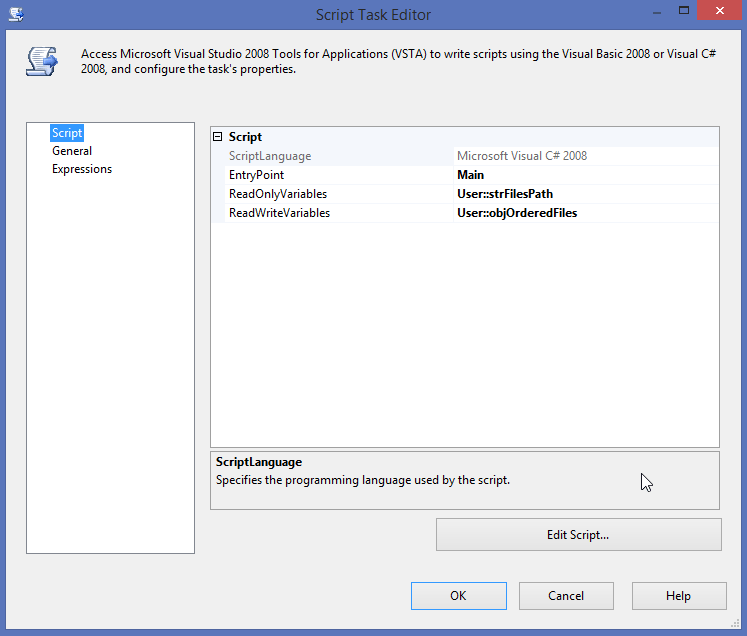
In my Script Task editor, I passed ‘strFilesPath’ as a ReadOnlyVariable and ‘objOrderedFiles’ as a ReadWriteVariable as shown below-

4_PassingVariablesToScriptTask

Now click on the ‘Edit Script’ button. In the Window that opens, we need to ensure that the target framework is 3.5 for our code to work. Click on ‘Project’ tab and select the last menu option that ends with ‘Properties…’ as shown below –

1_Changing Reference

In Application tab under Target Framework select the option ‘.NET Framework 3.5’ as shown below –

2_Changing Reference

You will get the following dialog box, click ‘Yes’

3_Changing Reference

Now in the ‘ScriptMain.cs’ file, under the main() paste the following code –


string strFilesPath = Dts.Variables[&quot;User::strFilesPath&quot;].Value.ToString();

Dictionary&lt;DateTime, string&gt; dictionary = new Dictionary&lt;DateTime, string&gt;();
List&lt;string&gt; orderedFiles = new List&lt;string&gt;();
string[] files = {} ;

// get the all files metadata from the directory
if(Directory.Exists(strFilesPath))
files = Directory.GetFiles(strFilesPath, &quot;bookreview_daily_*.txt&quot;, SearchOption.AllDirectories);

string strFilePath;
string strFileName;
DateTime dt;

// get all the file names and datetime present in it as a Key Value pair in the Dictionary
foreach (string file in files)
{
strFilePath = file;
strFileName = Path.GetFileNameWithoutExtension(file);

// this below gets the file name in required date time format by getting the suffix
// into datetime. ex - gets the value 2016-01-02 as date from bookreview_daily_2016_01_02
dt = DateTime.Parse(strFileName.Replace(&quot;bookreview_daily_&quot;, &quot;&quot;).Replace(&quot;_&quot;, &quot;-&quot;));

dictionary.Add(dt, strFilePath);
}

// get keys into list
var list = dictionary.Keys.ToList();
// sort the list
list.Sort();

foreach (var val in list)
{
// loop through the list and add the ordered file data
// into the list
orderedFiles.Add(dictionary[val]);
}

//assign it to the user defined object
Dts.Variables[&quot;User::objOrderedFiles&quot;].Value = orderedFiles;

Dts.TaskResult = (int)ScriptResults.Success;

Drag the ‘Foreach loop transform’ and connect it to the above script task. Double-click the transform to edit the options. Go to Collection and set the Enumeration Type as ‘Foreach from Variable Enumerator’ and under ‘Variable’ chose User::objOrderedFiles as seen below –

5_ForEachLoop container Choosing Enumerator

In the Variable Mappings window, select the variable User::strFullFilePath as seen below –

6_ForEachLoop container assigning variable.png

That’s it. Now the all the files that gets looped would be from the ‘Oldest to Newest’. I put another Script Task transformation that just pops up the file that is being read.

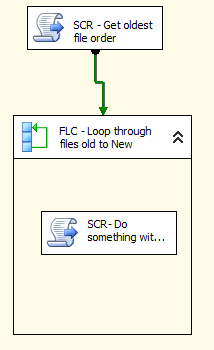
Here is the outline of the package –

8_PackageOutline

Once you run, you see that the first file that’s popped is the oldest one –

9_PackageResult

Now, if the question is about only getting the current months file, then we just need to modify the logic during the looping of the files in the list to check if it’s a current month’s date and pretty much everything else is the same.